 PowerCloud
The web console
How to start and use pcctl console, the browser view of a PowerCloud cluster - every panel and figure, deploying and publishing apps from its form, the first-run guide, reaching it safely from another machine, its limits and its error messages.
pcctl console shows your PowerCloud cluster in a web browser, live: what needs attention, every node with its CPU and memory, a node's resources, addresses and apps, and each app's logs. From it you can restart, remove and deploy apps, and, when you start it with the cluster's storage locations, publish cluster apps. The page is served by pcctl on your own machine, not by the nodes: pcctl reaches the nodes with your admin certificate, as every other command does, so no key leaves your machine.
What the console is, and what it isn't
The console is a part of pcctl, the PowerCloud command-line tool. It runs only while pcctl console runs, on the machine where you run it, and stops when you press Ctrl-C.

What follows from that design:
- The nodes serve no web page. They gain no web server, password or browser certificate to attack. Everything the console shows, it asks the nodes for through their admin API, exactly as
pcctl status,pcctl node infoandpcctl app lsdo. - It is a view of one admin machine's access. It shows the nodes in this machine's list of nodes (
pcctl node ls), with this machine's admin certificate. Another admin sees the same cluster from their ownpcctl. - It is not a hosted dashboard. Nothing is stored by the console; closing it loses nothing. It is not meant to be left open to a network: see Use it from another machine.
- It doesn't do everything
pcctldoes. It enrolls, unlocks, upgrades and removes no nodes, and touches no stored files. Those stay on the command line; see pcctl command reference.
Start it
You need pcctl and an admin certificate for the cluster (made when you enroll a node or run pcctl --repo LOC,... login; see Admins, keys and revocation). Then:
pcctl console
PowerCloud console at http://127.0.0.1:41377/?t=5b0c...
(for one browser, the first to open it; Ctrl-C to stop)
pcctl listens on 127.0.0.1 on a free port, opens your browser at that link, and serves the console until you press Ctrl-C.
With or without the cluster's keys
How you start the console decides what it can change:
| Started as | Needs | What it can do |
|---|---|---|
pcctl console |
the admin certificate | Show everything; read logs; restart, deploy and remove apps on one node at a time. |
pcctl --via NODE console |
the admin certificate | The same as pcctl console: the console doesn't use --via. |
pcctl --repo LOC,... console |
the admin certificate, the storage locations and your passphrase | All of the above, and publish and remove cluster apps, which the nodes place among themselves. |
Cluster apps live in a signed document in the cluster's storage, so publishing one needs the cluster's root key. With --repo, pcctl asks for your passphrase (or reads POWERCLOUD_PASSPHRASE), unlocks the keys as every --repo command does, and keeps them in its own memory while the console runs; they never reach the browser. If you set POWERCLOUD_REPO in your shell, a plain pcctl console uses it, and so asks for the passphrase too; --via overrides POWERCLOUD_REPO and starts the console without the keys. For cluster apps themselves, see Cluster apps.
Flags
Flags go after console:
| Flag | Default | What it does |
|---|---|---|
--port N |
any free port | The port to listen on. |
--listen ADDR |
127.0.0.1 |
The IP address to listen on. An address other than loopback lets other machines in; 0.0.0.0 listens on every address. Must be an IP address, not a name. |
--host NAME |
this machine's name and addresses | A name or address other machines use to reach the console. Repeatable. Only used with --listen. |
--no-open |
off | Don't open a browser; just print the link. |
pcctl console --port 8080 --no-open
pcctl --repo LOC,... console --port 8080
The one-time link
The link pcctl prints carries a random token (32 random bytes, in hex), made afresh each time the console starts. The first browser to open the link trades the token for a cookie (HttpOnly, SameSite=Strict) and is redirected to the plain address, so the token leaves the address bar and the history. After that the link lets no one in, not even the same browser in a private window. To use another browser, stop pcctl console and start it again for a new link.
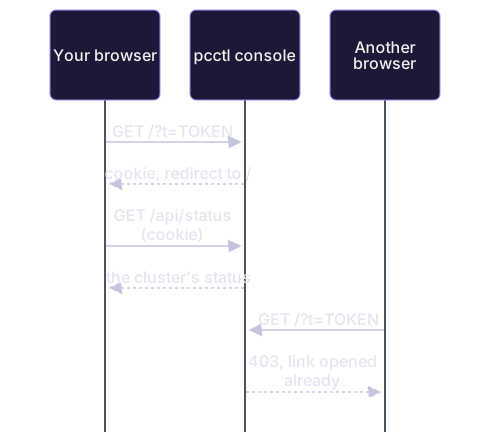
This is why the console takes a link rather than a password: anything on your machine can connect to a port on 127.0.0.1, and the token makes sure only the browser you opened it in gets in. Three further checks hold for every request:
- The host must be the console's own. A request must name
127.0.0.1:PORT,localhost:PORT, or one of the names given by--host(or found by--listen). This stops a web page from reaching the console by pointing a DNS name of its own at127.0.0.1. - Changes must come from the console's page. Every request other than a read must carry an
Originheader naming the console's own host. - The page loads nothing from elsewhere. A strict Content-Security-Policy allows only the console's own script and stylesheet, and the page sets everything nodes report as text, never as HTML.
The overview
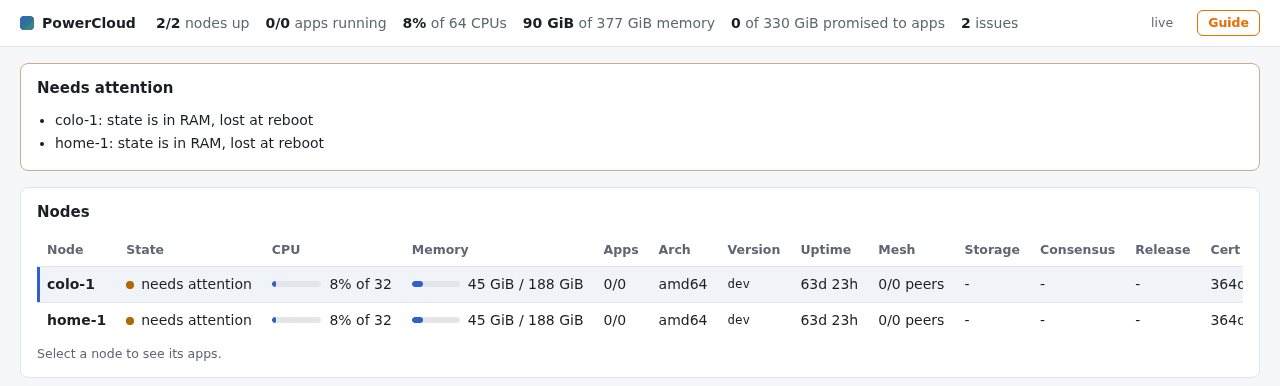
The page refreshes every 5 seconds. Beside the Guide button it says how fresh its data is: "live" when the last answer is under 2 seconds old, otherwise "updated 8s ago", in red once it is more than 15 seconds old. If pcctl console has stopped, it says "can't reach pcctl console" with the reason.
The summary bar
Across the top, added up over every node that answered:
| Figure | What it means |
|---|---|
| nodes up | Nodes that answered, of all the nodes in this machine's list. |
| apps running | Apps in the running state, of all apps on the nodes that answered (cluster apps count once per node that runs them). |
| % of N CPUs | How busy all the nodes' CPUs are together, over the last few seconds, of the total number of CPUs. |
| memory | Memory in use on all the nodes, of all their memory. |
| promised to apps | What the apps' memory limits add up to, of the memory the nodes set aside for apps. Nodes never promise more than they set aside, so this is how much room is left for new apps, however little the apps actually use. |
| issues | How many lines the Needs attention list has. |
Needs attention
The same list pcctl status prints, shown only when it isn't empty. Each line names a node and what is wrong:
- a node that is unreachable, with the reason;
- a node that reaches fewer than all of its mesh peers;
- an app that isn't running, with its last exit;
- a storage sync that didn't complete;
- a node certificate expiring within 7 days;
- a release rejected or halted on a node, or an upgrade still on trial;
- a cluster app that no node has the memory or CPU for;
- a node whose state is in RAM and lost at reboot.
What to do about each is in Troubleshooting. If a restart or removal you asked for fails, its error is added at the top of this list too.
The node list
One row per node, sorted by name. Select a row (or move to it with Tab and press Enter) to show that node below; the first node is selected when the page opens.
| Column | What it shows |
|---|---|
| Node | The name you enrolled it under. |
| State | ok (with the confidential-computing technology, such as ok, AMD SEV-SNP, when the node runs in one); needs attention when an app isn't running, a mesh peer is unreachable, or its state is in RAM; unreachable when it didn't answer, with the error across the rest of the row. |
| CPU | A bar and the busy share of its CPUs, such as 8% of 32. |
| Memory | A bar and memory in use of its total, such as 45 GiB / 188 GiB. |
| Apps | Apps running, of the apps on it. |
| Arch | amd64 or arm64, and microVMs when it can run apps in microVMs. |
| Version | The PowerCloud release it runs (dev for a build from source). |
| Uptime | Since the node booted. |
| Mesh | Mesh peers it reaches, of its peers. |
| Storage | How many storage locations it serves, or -. |
| Consensus | Its state in the nodes' consensus group and the current leader, such as StateFollower, leader home-1; - before pcctl --repo LOC,... consensus init. |
| Release | The cluster release it follows and where it is with it, such as vYYYY.MM.DD current (states: current, trial, pending, installing, rejected, halted). See Upgrades. |
| Cert | Days until the node's certificate expires, in amber under 7. |
Bars turn amber from 75% full and red from 90%.
A node's view
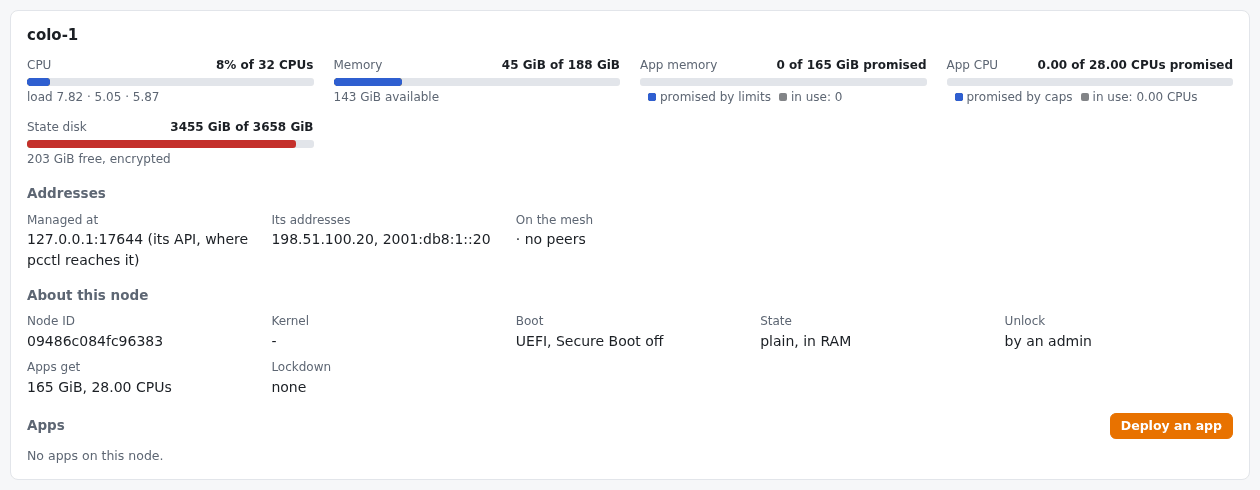
Below the node list, the selected node's own panel has four parts.
Resources
| Bar | Figure | Note under it |
|---|---|---|
| CPU | busy share of the node's CPUs | the load average over 1, 5 and 15 minutes |
| Memory | memory in use of the node's total | memory available |
| App memory | what its apps' memory limits promise, of the memory it sets aside for apps | in use: what the apps actually use |
| App CPU | what its apps' CPU caps promise, of the CPUs it sets aside for apps | in use: the CPUs the apps actually use |
| State disk | space used on the state disk | space free, and the disk's encryption (or in RAM when the node keeps its state in memory) |
The App memory and App CPU bars hold two shares: the coloured fill is what limits promise, the grey one inside it is what is in use. When the coloured fill is full, no further app fits on this node, however little the others use: placement goes by limits, not by use. An app without a CPU cap promises no CPU.
Addresses
- Managed at: the address and port of the node's API, where
pcctlreaches it (set at enrollment, or withpcctl --repo LOC,... node addr). - Its addresses: the node's own addresses on the networks it is on.
- On the mesh: its private address on the encrypted mesh, then each peer with its round-trip time in milliseconds,
downwhen unreachable, orvia NODEwhen it is reached through a relay.
About this node
Node ID, kernel, how it booted (UEFI, and whether Secure Boot is on), its state (the state disk's encryption, or in RAM), how it unlocks at boot (by its TPM, by its peers, or by an admin; see Unlocking nodes after a reboot), what it gives apps (memory and CPUs, and whether microVMs), the hash of its boot image (marked on trial during an upgrade), and its kernel lockdown mode.
Apps
One row per app on the node:
| Column | What it shows |
|---|---|
| App | Its name, and the image it came from, for an image app. |
| State | running (green), failed (red), or another state (amber), with the error if there is one. |
| Uptime | Since it last started. |
| Restarts | How often the node restarted it, and how many times it was killed for running out of memory. |
| Memory | A bar of memory in use against its limit (256 MiB when none was set). |
| CPU | A bar of CPUs in use against its CPU cap, or just the CPUs in use when it has no cap. |
| Network | own (its own network), own, microVM, or the node's (--net host), plus + egress, and the apps it reaches by link. |
| Reach at | Each published port at the node's address, as a link for TCP ports; not from outside when it publishes none. For a node managed at a loopback address (a VM's forwarded port, say), the port is shown without a link, because the node's own address isn't known. |
| Placed | cluster for a cluster app, by hand for one deployed to this node; and seccomp when its system-call filter is on. |
| Last exit | How it last stopped, if it has. |
Apps have no address of their own: each has a network with nothing in it but itself (a microVM has a private link to its node), so they are reached only through the ports they publish on the node. See Apps on a node.
Each row has three buttons:
- Logs opens the app's output below the page: the last 64 KiB, starting at a whole line. With Follow ticked it refreshes every 2 seconds and keeps to the end. Close (or Escape) hides it.
- Restart stops the app and starts it again at once, without asking; its data stays.
- Remove asks first. For an app deployed by hand, tick keep its data to keep its data directory on the node. For a cluster app, the button reads Remove NAME from the cluster and takes it off every node; it needs a console started with
--repo, and is greyed out otherwise, with a tooltip giving the command (pcctl --repo LOC,... cluster app rm NAME).
Deploy an app from the form
Deploy an app, in the selected node's panel, opens a form. It checks what it can before sending anything and says what is wrong under the fields.
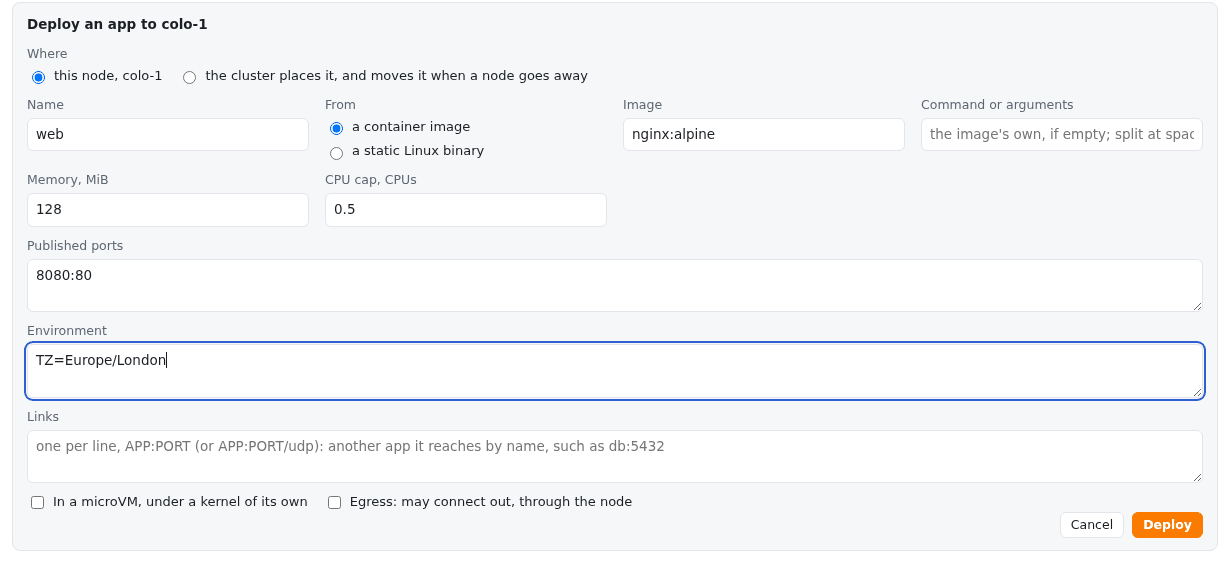
| Field | What to give | Like the option |
|---|---|---|
| Name | 1 to 32 lowercase letters, digits and dashes, starting with a letter or digit. | NAME |
| From | A container image, or a static Linux binary to upload (up to 512 MiB). | --image REF or FILE |
| Image | NAME[:TAG][@DIGEST], such as nginx:alpine. |
--image |
| Command or arguments | Split at spaces. For an image, its command (the image's own if empty); for a binary, its arguments. | -- ARGS |
| Memory, MiB | The memory limit; 256 by default, at least 4. | --mem |
| CPU cap, CPUs | Such as 0.5; empty for no cap. |
--cpu |
| Published ports | One per line, NODE:APP or NODE:APP/udp, such as 8080:80. |
--port |
| Environment | One per line, KEY=VALUE. |
--env |
| Links | One per line, APP:PORT or APP:PORT/udp: another app it reaches by name, such as db:5432. |
--link |
| In a microVM | Run it under a kernel of its own. | --vm |
| Egress | Let it connect out, through the node. | --egress |
An image is pulled on your machine, for the node's architecture, then sent to the node, as pcctl app deploy --image does; private images use the login docker login saved on your machine. A binary is uploaded from your browser to pcctl, then to the node. Either way the button says what it is doing ("Pulling the image here, then deploying..."), a deploy may take up to 15 minutes, and the app appears in the list when it is done. Cancel or Escape closes the form. What each option means for the app is described in Apps on a node.
Publish a cluster app
In a console started with --repo, the form starts with Where: this node, or the cluster places it, and moves it when a node goes away. Choose the second to publish a cluster app; the form's title becomes "Deploy an app for the cluster to place" and more fields appear.
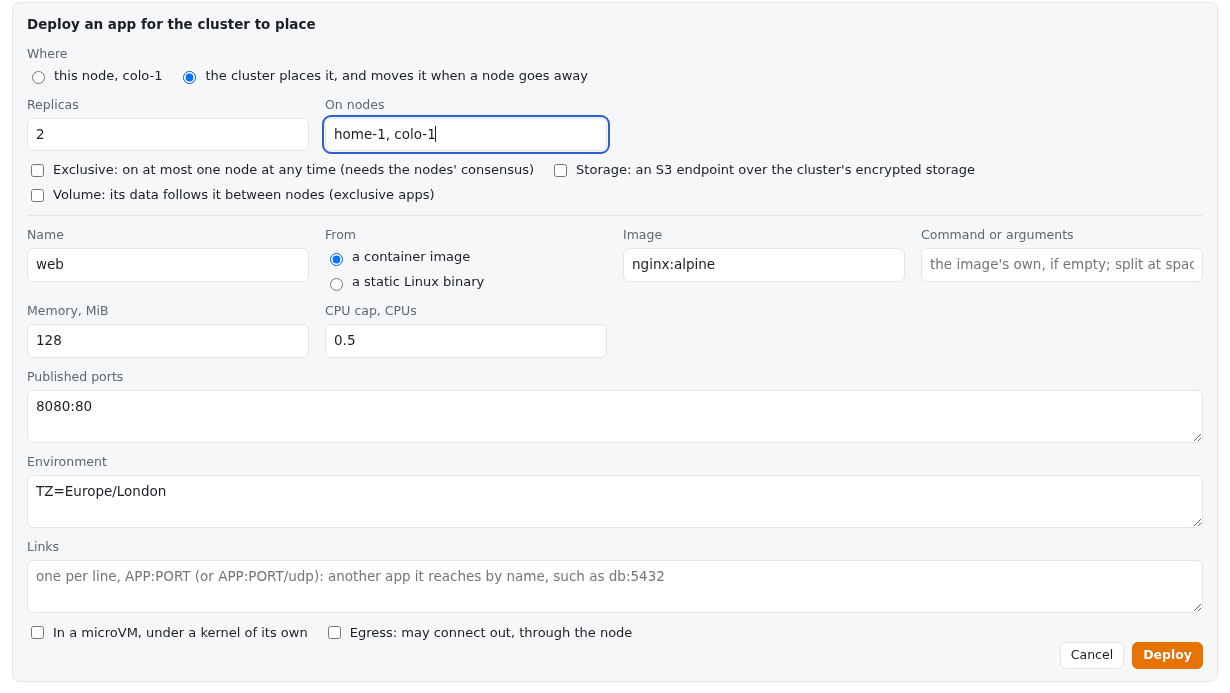
| Field | What it does | Like the option |
|---|---|---|
| Replicas | How many nodes run the app; 1 by default. | --replicas |
| On nodes | The nodes that may run it, by name, separated by commas or spaces; empty for any. | --nodes |
| Exclusive | On at most one node at any time, through the nodes' consensus (needs consensus init); one replica only. |
--exclusive |
| Storage | An S3 endpoint for the app over the cluster's encrypted storage. | --storage |
| Volume | Its data directory follows it between nodes; exclusive apps only. | --volume |
The form refuses a volume without Exclusive, and Exclusive with more than one replica. Publishing works as pcctl --repo LOC,... cluster app deploy does; see Cluster apps. In a console started without --repo, there is no Where choice, and a note under the form says to start it with pcctl --repo … console to let the cluster place apps.
The guide
A short guided tour starts by itself the first time a browser opens the console, and again whenever you press Guide. Each step outlines part of the page in pulsing orange (a still outline if your system asks for reduced motion) and explains it in a card beside it, with Back, Next and Dismiss; the arrow keys move between steps and Escape ends it.
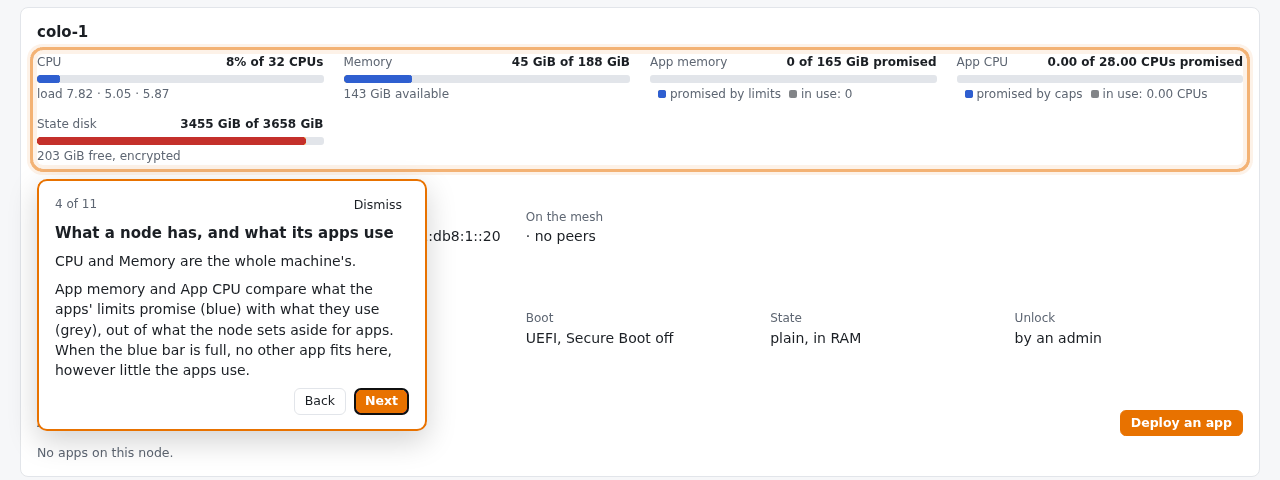
Its eleven steps cover the summary bar, Needs attention, the node list, a node's resources, its addresses, how apps are networked, Reach at, the Logs and Restart buttons, deploying an app, where your keys stay, and the Guide button. Steps for parts not on the page (no Needs attention list, a node without apps) are skipped. The browser remembers that it has seen the guide in its own local storage, so a private window shows it again.
Use it from another machine
By default the console listens on 127.0.0.1 only, so only browsers on the same machine reach it. There are two ways to use it from elsewhere.

An SSH tunnel (recommended)
On the machine with pcctl and your admin certificate (here admin-box), start the console on a fixed port without a browser:
pcctl console --port 8080 --no-open
On the machine with the browser, forward the same port number, then open the link the console printed:
ssh -L 8080:127.0.0.1:8080 admin-box
The link names 127.0.0.1:8080, which the tunnel carries, and SSH encrypts the traffic. Use the same port number on both ends: the console checks that requests name its own host and port, so a tunnel to another local port is refused with "unknown host".
On the network, with --listen
--listen serves the console on the network, by this machine's name and addresses:
pcctl console --listen 0.0.0.0 --port 8080 --host admin-box.lan --no-open
PowerCloud console at http://admin-box.lan:8080/?t=...
(for one browser, the first to open it; Ctrl-C to stop)
warning: the console is on the network over plain HTTP: anyone who can see its traffic can take the link or the session. Use it on a network you trust, or reach a loopback console over an SSH tunnel instead.
- It is plain HTTP. The console doesn't serve HTTPS. Its protection is the one-time link and the cookie, and anyone who can see the traffic can copy either. Use it only on a network you trust.
- The names it answers to. With
--listen 0.0.0.0and no--host, the console accepts this machine's host name and each of its addresses (except loopback and link-local ones); with a specific address, the host name and that address.127.0.0.1andlocalhostalways work. The link printed uses the first name: the first--hostyou gave, or the machine's host name. Give--hostfor each name browsers will use, such as a DNS name or an address behind NAT. - Pass
--no-open. Without it,--listen 0.0.0.0opens a browser on this machine, which takes the one-time link before the browser you meant can. (With a specific non-loopback address, no browser is opened.)
Limits
- One browser per start. The link works once; a new browser needs a restart of
pcctl console. - No HTTPS. On a network, the console is plain HTTP; prefer an SSH tunnel.
- Not everything is in the form. The form has no process limit (
--procs), no--net host, and no data-directory option; usepcctl app deployorpcctl --repo LOC,... cluster app deployfor those. Deploys and removals are of one app at a time. - No node administration. Enrolling, unlocking, upgrading, renewing and removing nodes, storage and keys are done with
pcctl. - Uploads up to 512 MiB. A larger binary must be deployed with
pcctl app deploy. - What it sees is this machine's list. It shows the nodes in this machine's
nodes.json. A node enrolled from another admin machine appears once this machine knows its address (pcctl --repo LOC,... node addr NAME HOST; see Managing nodes). - Timeouts. Each node has 10 seconds to answer a refresh; a deploy or publish may take up to 15 minutes; a removal 60 seconds.
Troubleshooting
"open the console with the link 'pcctl console' printed"
The browser has no console cookie: it opened the plain address, or it isn't the browser that opened the link. Open the link pcctl console printed, in the browser that should use it; if another browser has taken it, restart pcctl console.
"this console link has been opened already, by one browser; restart 'pcctl console' for a new one"
The link was opened before, by another browser or by the browser pcctl opened itself. Press Ctrl-C and start pcctl console again (with --no-open if the browser should be elsewhere).
"this console link is from another 'pcctl console'; open the one it printed"
The link is from an earlier run. Each start makes a new token; use the latest link.
"unknown host"
The request named a host the console doesn't answer to. Over an SSH tunnel, forward the same port number on both ends. With --listen, add the name or address the browser uses with --host.
"cross-origin request refused"
A change (restart, deploy, removal) came from a page other than the console's own, or without an Origin header. Make changes from the console's own page.
"no admin credentials (run 'pcctl --repo ... login')" or "admin certificate expired"
pcctl console needs an admin certificate in its configuration directory ($POWERCLOUD_CONFIG, by default ~/.config/powercloud on Linux and ~/Library/Application Support/powercloud on macOS). Run pcctl --repo LOC,... login; see Admins, keys and revocation.
"--listen "NAME": give an IP address, such as 0.0.0.0"
--listen takes an IP address. To reach the console by a name, listen on an address and give the name with --host.
The page says "can't reach pcctl console"
pcctl console has stopped, or the machine running it is unreachable. Start it again; a new link is needed.
Deploying says "this node doesn't run apps"
The node's pcd couldn't set up the app sandbox, as when pcd runs as an ordinary user outside PowerCloud OS (as in the Quickstart). The full message reads "Deploying web to colo-1: deploy: 501 Not Implemented: this node doesn't run apps". Deploy to a node running PowerCloud OS.
Deploying says "cluster apps are published with the cluster's keys"
The console was started without --repo. Stop it and start it with pcctl --repo LOC,... console.
The form says what is wrong before deploying
The form names the field: for example "Name: 1 to 32 lowercase letters, digits and dashes.", "Port "8080": NODE:APP or NODE:APP/udp.", "Volume: a volume has one writer, so the app must be exclusive." or "Replicas: an exclusive app has one." Correct the field and press Deploy again.
Remove is greyed out for an app
It is a cluster app and the console was started without --repo. Remove it with pcctl --repo LOC,... cluster app rm NAME, or restart the console with --repo.
A node shows as unreachable
The console reaches nodes exactly as pcctl status does, and shows the same error. See the entry on unreachable nodes in Troubleshooting.